Developer API page
Create, roll and revoke API keys, set webhooks and see API messages in the CloudMetis app.
Last reviewed
The Developer API page is where your organisation manages the keys its own systems use to send SMS. You need to be an organisation Admin. Go to Management → Developer API.
For how to use the API itself, see the Developer API docs.
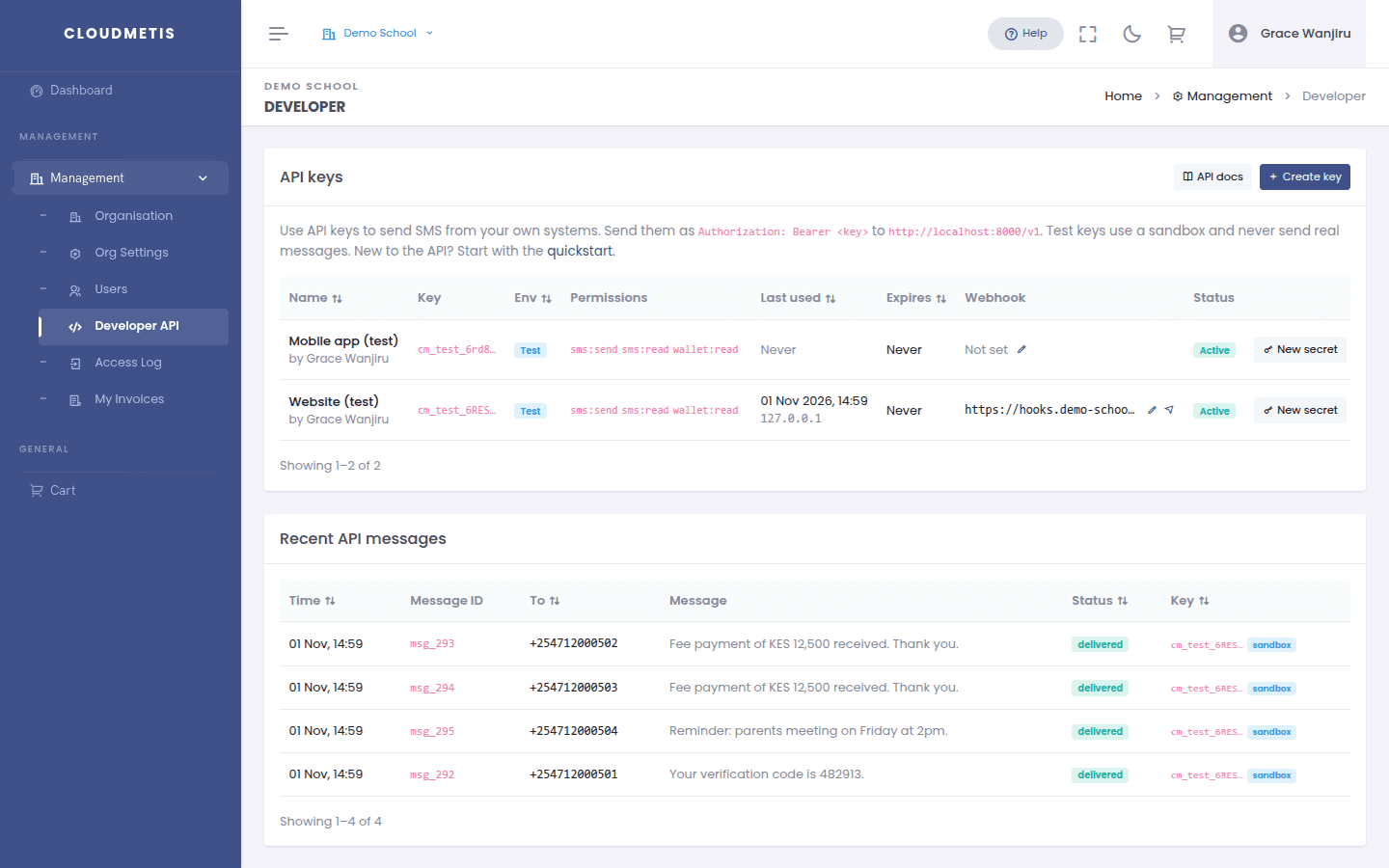
Create a key
- Click Create key.
- Give it a Name (e.g. Website checkout).
- Choose the Environment:
- Test (sandbox) — for building and testing. Nothing is really sent and no units are used.
- Live — sends real SMS and uses units.
- Choose Permissions: Send SMS, Read message status, Read wallet balance. Only give what that system needs.
- Optionally add a Webhook URL (where delivery reports are sent) and an Expires date.
- Click Create key.
Copy the key and the webhook signing secret now — they are shown only once. Give them to your developer through a secure channel, never by plain email or chat.
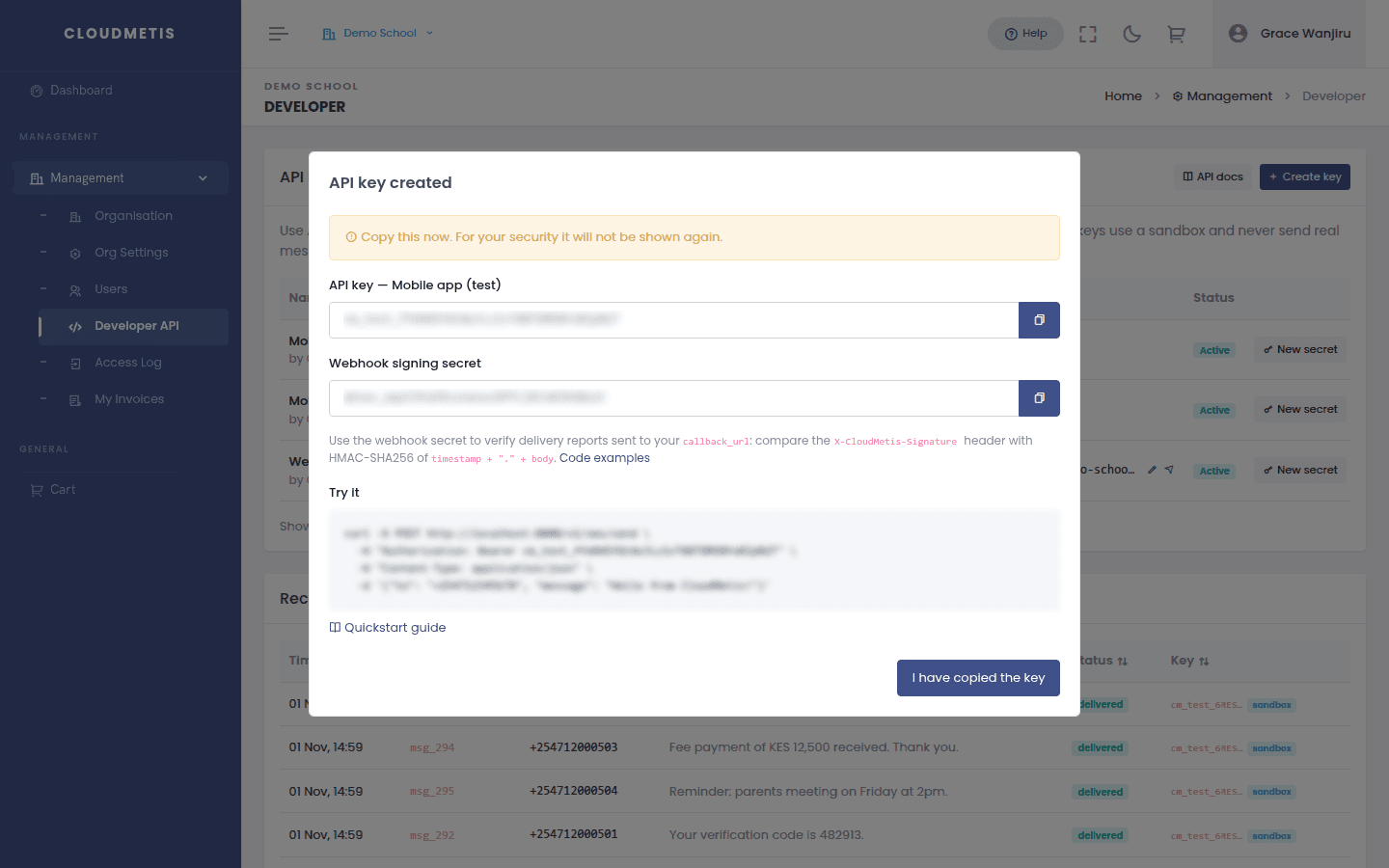
Webhooks
In the Webhook column:
- ✏️ Edit — set or change where delivery reports are sent. Live keys need an
httpsaddress. - ✈️ Test — sends a sample signed delivery report right away and tells you whether your server accepted it.
- Get secret / New secret — creates the signing secret your developer uses to check that reports really come from CloudMetis. New secret replaces the old one immediately.
Roll a key
Use Roll to replace a key — routinely, or immediately if it may have leaked. The new key keeps the same settings and webhook secret. Choose when the old key stops working: Immediately, In 1 hour, In 24 hours (recommended, gives time to update your systems) or In 7 days.
Revoke a key
Revoke stops a key permanently and immediately. Any system still using it stops working.
Recent API messages
The table at the bottom lists messages sent through the API, with their status and the key used. Test-key messages have a sandbox badge. All API messages also appear in Delivery reports.