Getting started
Sign up, log in, switch organisation and invite your team to CloudMetis.
Last reviewed
1. Create your account
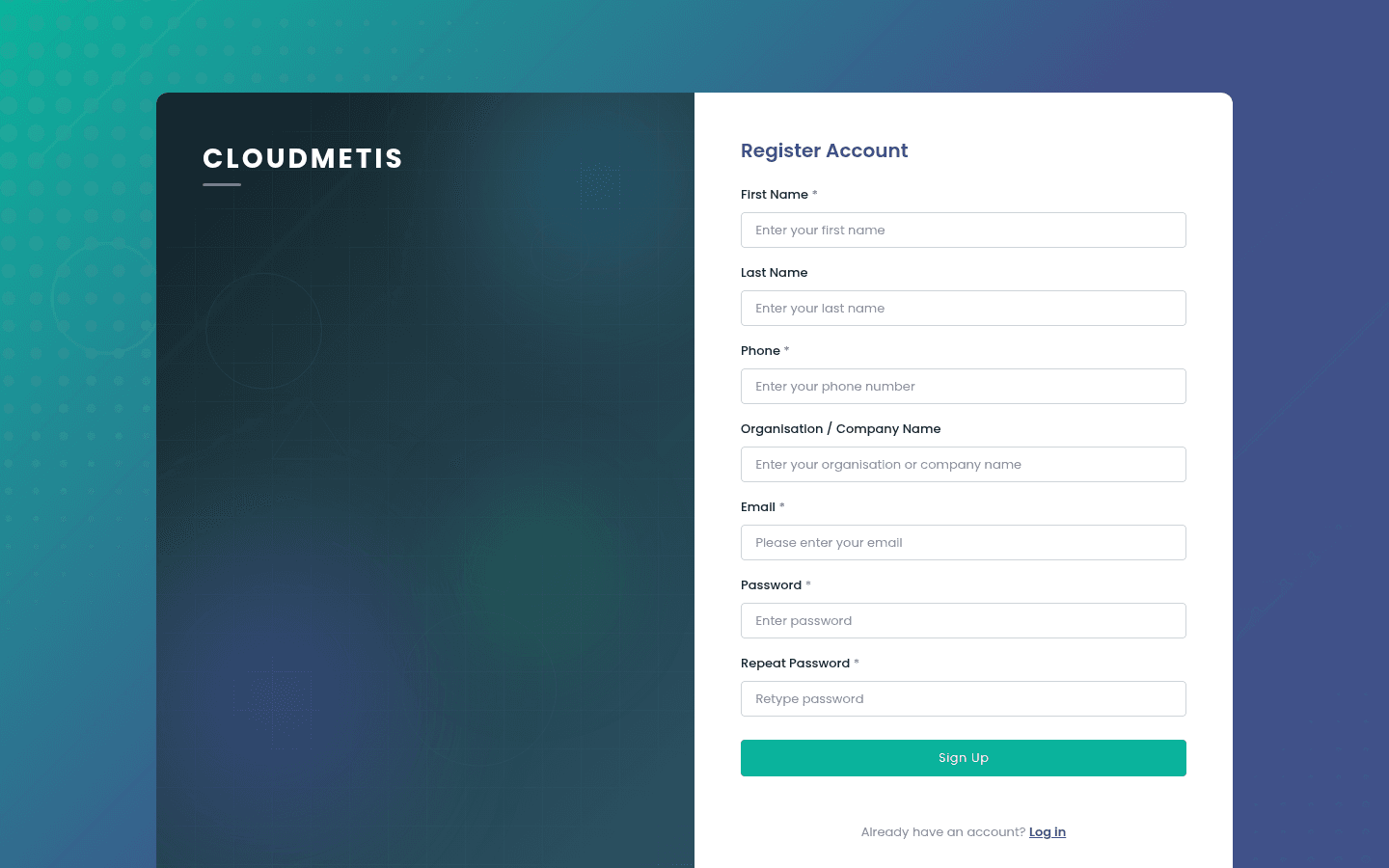
- Go to app.cloudmetis.com and click Signup.
- Fill in First Name, Phone, Organisation / Company Name, Email and a Password.
- Passwords need 12–40 characters, with an uppercase letter, a lowercase letter, a number and a special character.
- Click Sign Up, then confirm your email address using the link we send you.
After signing up you'll see Account Setup in Progress. Our team sets up your organisation — usually within one business day. The page checks automatically every 30 seconds, or click Check Now.
Invited by a colleague?
Use the link in your invitation email instead. Your email is filled in for you and you join their organisation straight away — no setup wait.
2. Log in
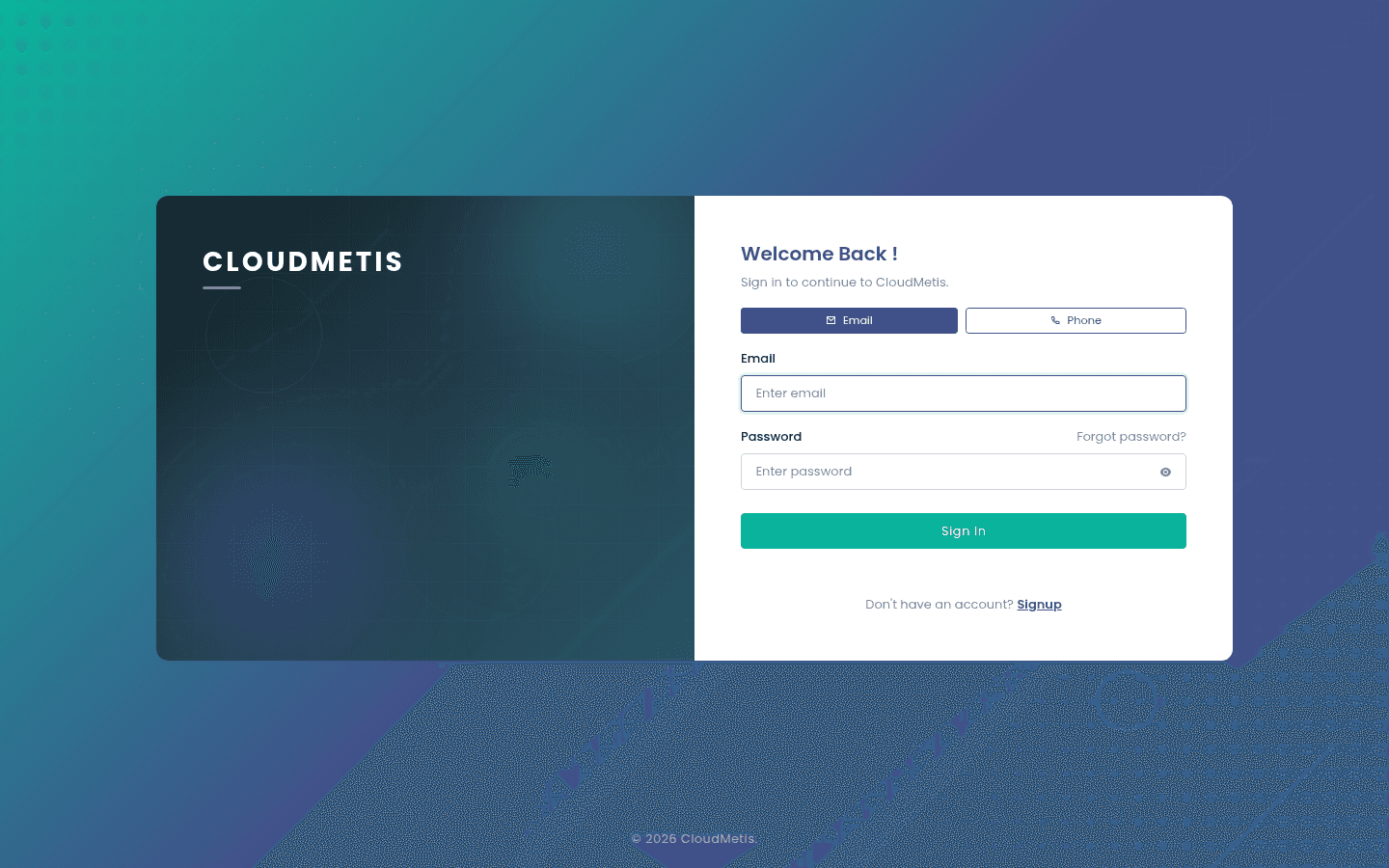
On the login page choose Email or Phone:
- Email: enter your email and password, then Sign In.
- Phone: enter your number (e.g.
0712345678) and click Send OTP Code. Enter the code we text you.
If two-step verification is on, we email you a 6-digit code to finish logging in.
3. Find your way around
The dashboard shows a card for each product you have — SMS, Contacts and others. Click a card to open that product; the menu on the left changes to show its pages.
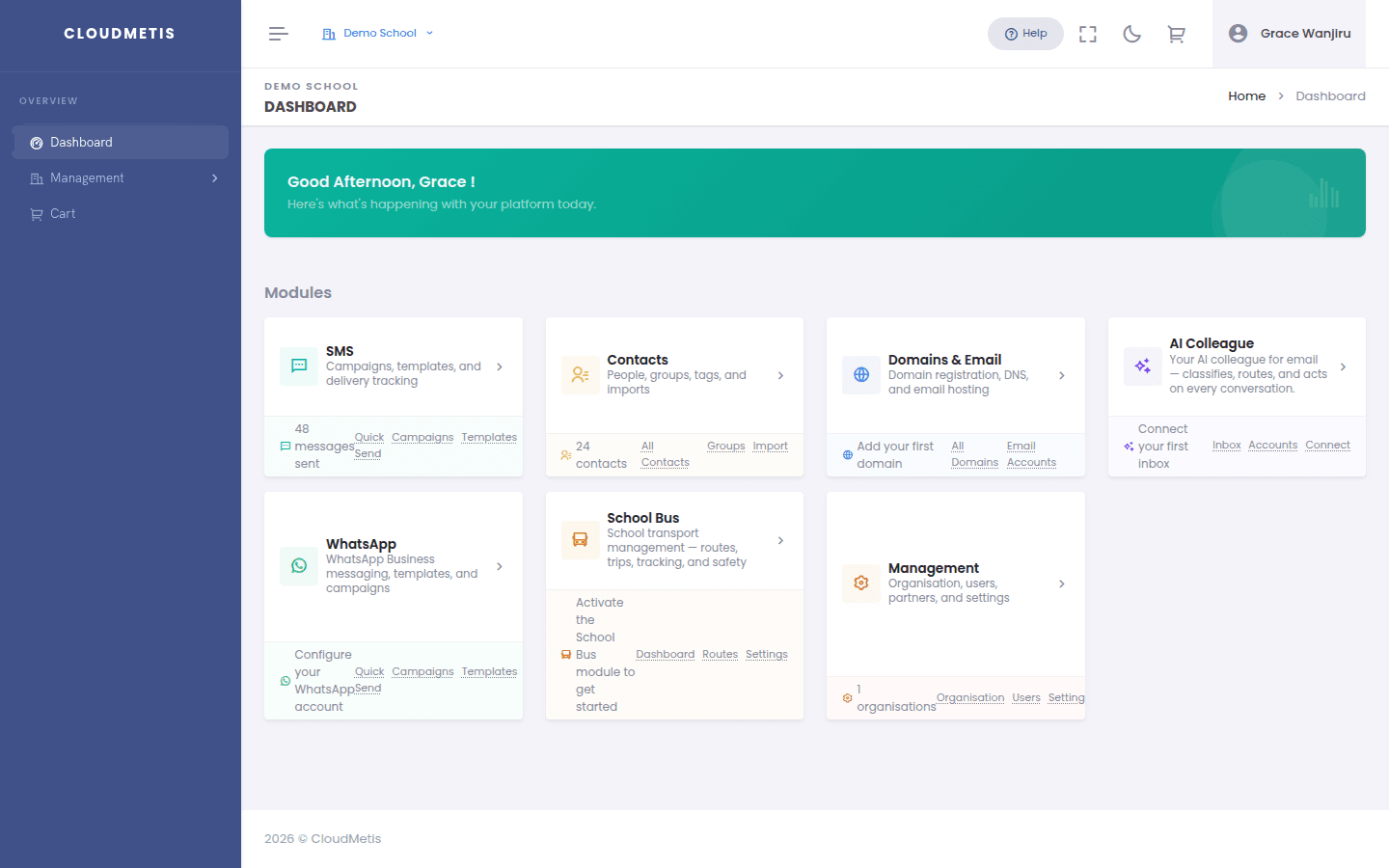
The top bar has:
- Organisation switcher — if you belong to more than one organisation, choose which one you're working in.
- Help — opens these guides.
- Your name — for Settings and Logout.
4. Invite your team
You need to be an organisation Admin.
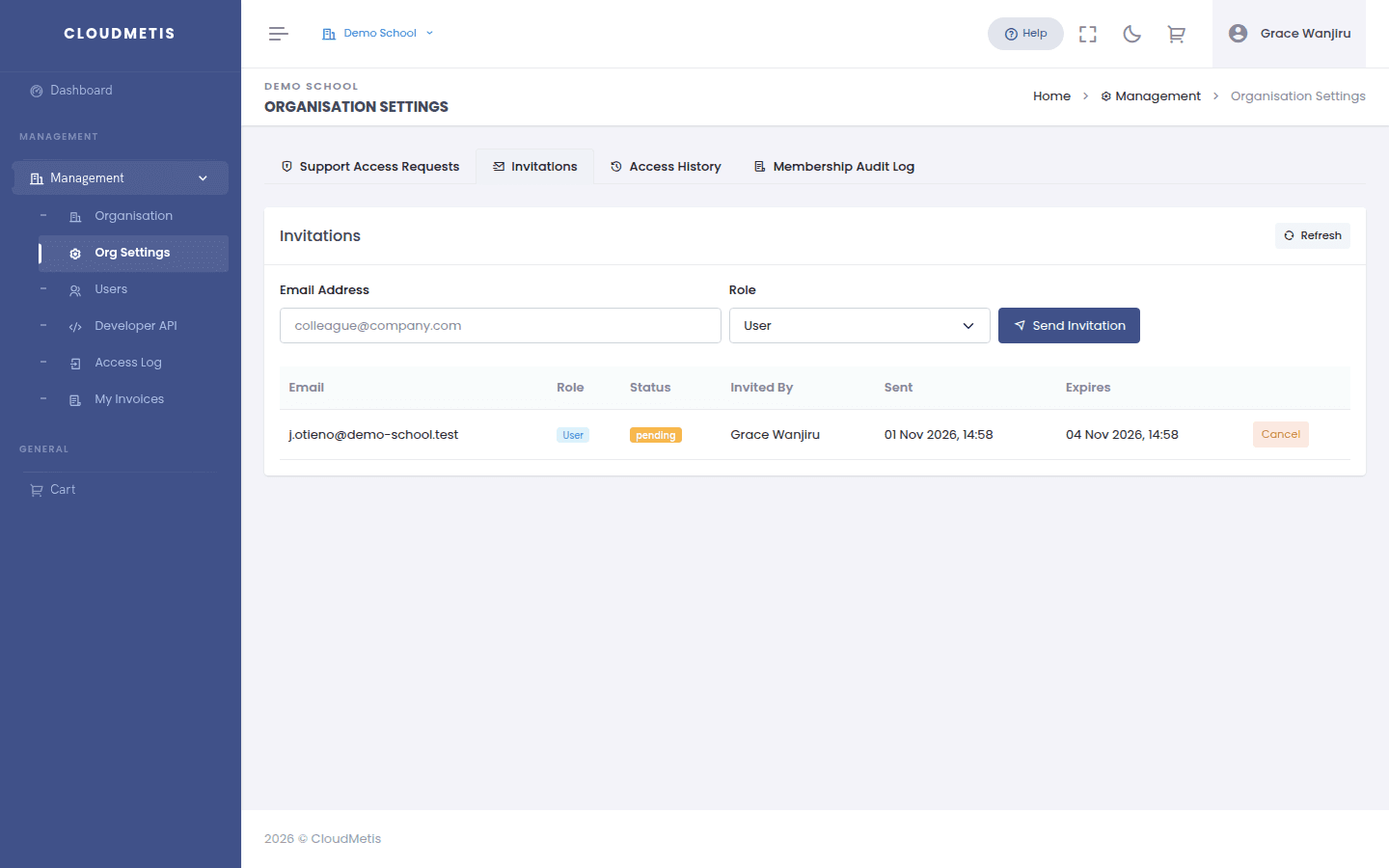
- Go to Management → Org Settings and open the Invitations tab.
- Enter your colleague's Email Address and choose a Role:
- User — can send messages and manage contacts.
- Admin — can also invite people, manage settings and create API keys.
- Click Send Invitation.
The invitation appears in the list as pending until they accept it. You can Cancel it any time before then.
Next steps
- Apply for a sender ID — you need one before you can send SMS.
- Buy SMS units.
- Send your first message.