SMS
Send an SMS (Quick Send)
Send a message right away to contacts, groups or typed-in numbers.
Last reviewed
Quick Send sends one message right away to as many people as you like. You need an approved sender ID and SMS units.
Go to SMS → Quick Send.
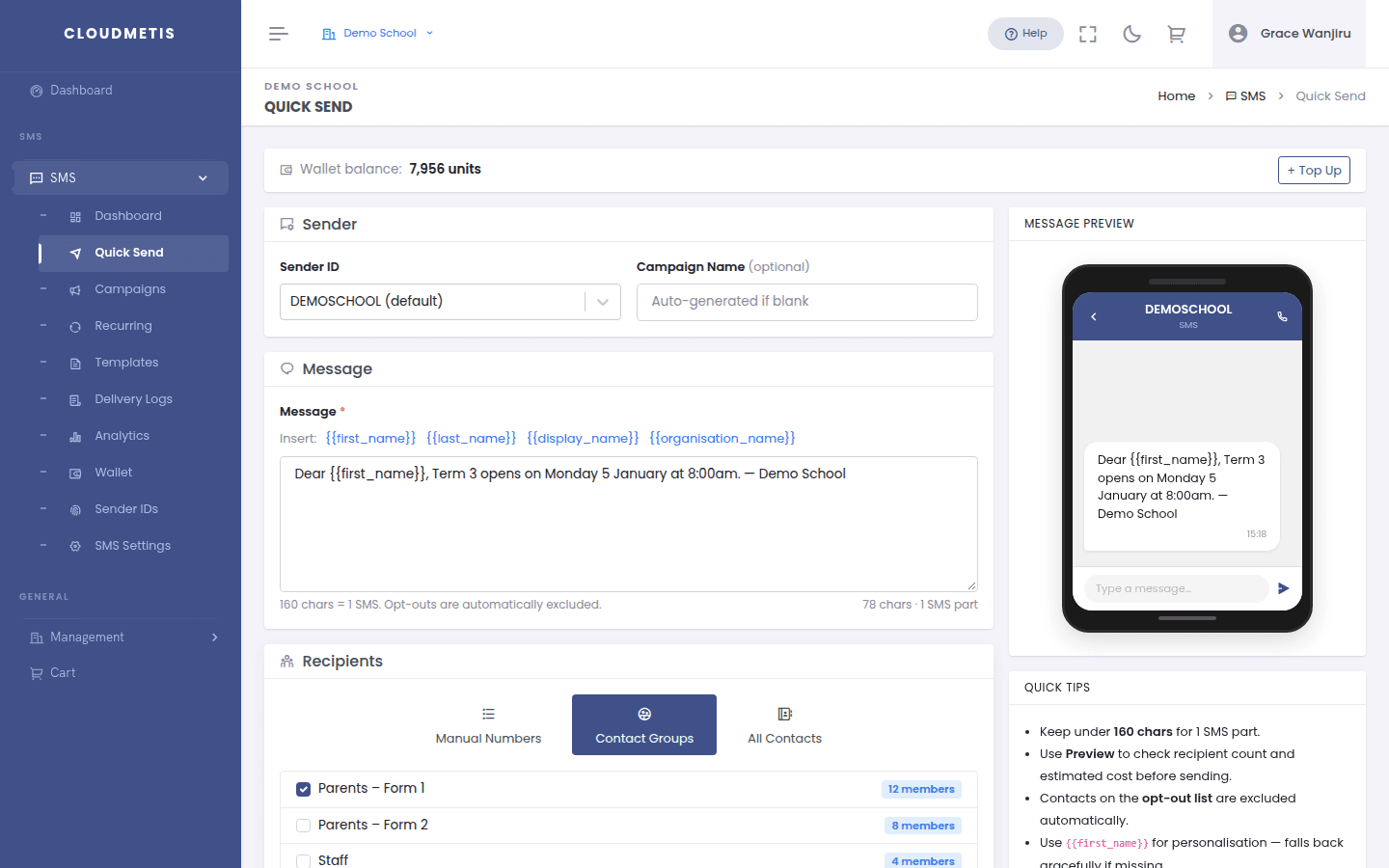
1. Sender
- Sender ID — pick which name recipients will see. Your default is marked (default).
- Campaign Name (optional) — helps you find this send later in Campaigns and reports. Left blank, a name is created for you.
2. Message
- Type your text in Message, or start from a saved Template.
- Click the Insert buttons to personalise the message:
{{first_name}},{{last_name}},{{display_name}}and{{organisation_name}}are replaced for each contact. - The counter under the box shows characters and SMS parts — each part uses one unit per recipient.
The phone on the right shows a preview of how the message will look.
3. Recipients
Choose a tab:
| Tab | Sends to |
|---|---|
| Manual Numbers | Numbers you type or paste — one per line, or separated by commas or semicolons. 07… and 01… numbers are accepted. You can also search for contacts, groups or tags here. |
| Contact Groups | Every member of the groups you tick (member counts are shown). |
| All Contacts | All active contacts with a phone number who haven't opted out. |
Numbers that have opted out are always skipped automatically.
4. Check the cost, then send
- Click Preview Recipients & Cost. You'll see the number of recipients, SMS parts, the cost in units and your balance after sending.
- Invalid numbers are listed and will be skipped.
- If your balance is too low, you'll be prompted to top up first.
- Click Send Now.
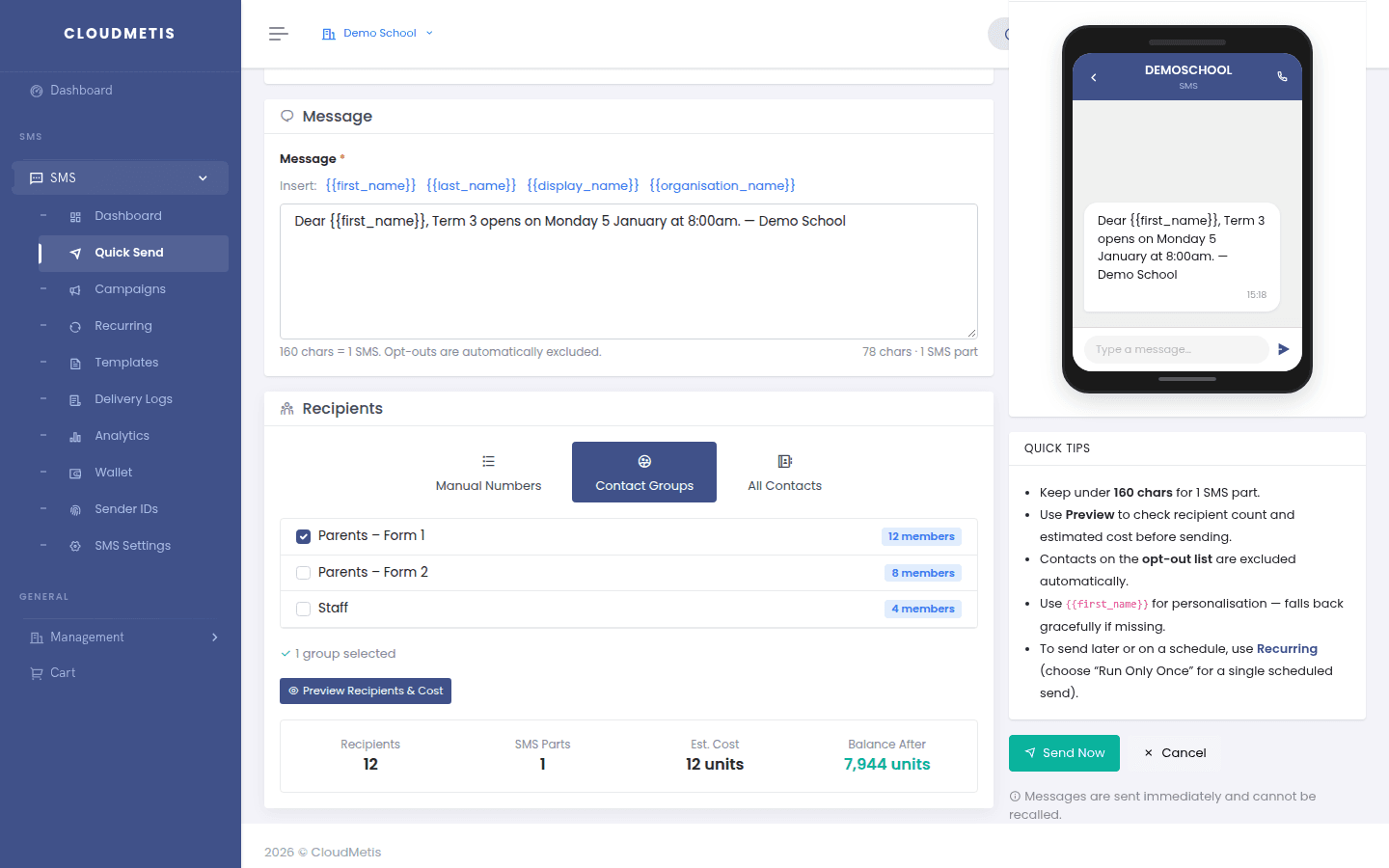
The message goes out immediately — there is no extra confirmation step, so check the preview first. Large sends continue in the background; follow progress in Campaigns or Delivery reports.
Want to send later or on a schedule?