Campaigns and scheduling
Track sends, schedule messages for later, set up recurring campaigns and resend failed messages.
Last reviewed
Every send is saved as a campaign, so you can see how it went and resend messages that failed.
See your campaigns
Go to SMS → Campaigns. Search by name or filter by status. Each row shows how many messages were sent, delivered and failed, and the cost.
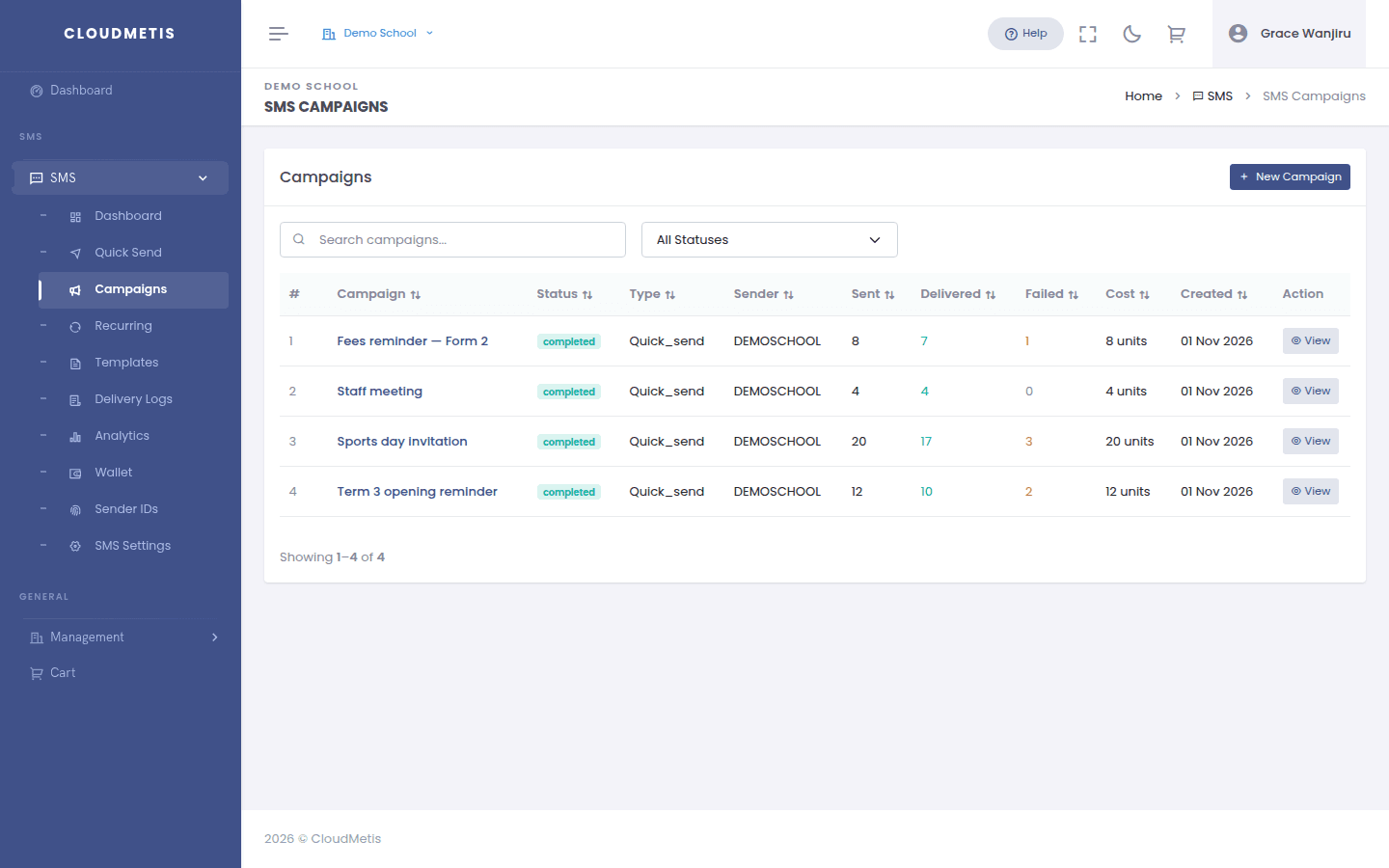
New Campaign opens Quick Send for an immediate send. To send later, see Schedule a campaign below.
Campaign details
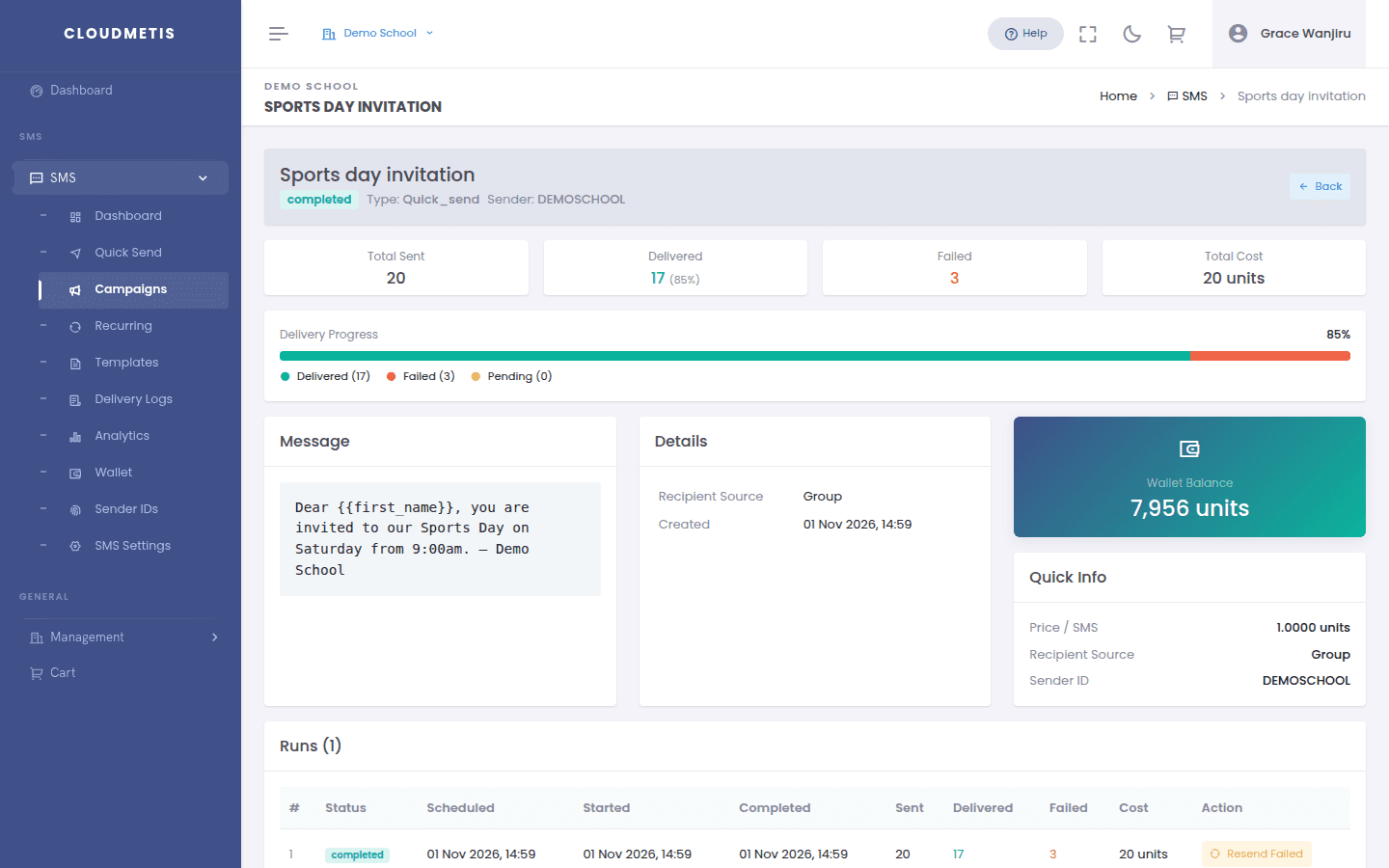
Click View on a campaign to see:
- Totals — sent, delivered (with %), failed and cost, plus a delivery progress bar.
- Message and Details — the text, who it went to and when.
- Runs — each time the campaign was sent (recurring campaigns have several).
- Recipient Status Detail — every recipient with status, network and failure reason. Filter by status to find failures quickly.
Resend failed messages
In the Runs table, click Resend Failed on a run. Only the failed, expired and rejected messages are sent again, and they use units again. Each run can be resent once.
Before resending, check the Failure Reason — a wrong or inactive number will fail again.
Schedule a campaign
Scheduled and repeating sends are set up under SMS → Recurring.
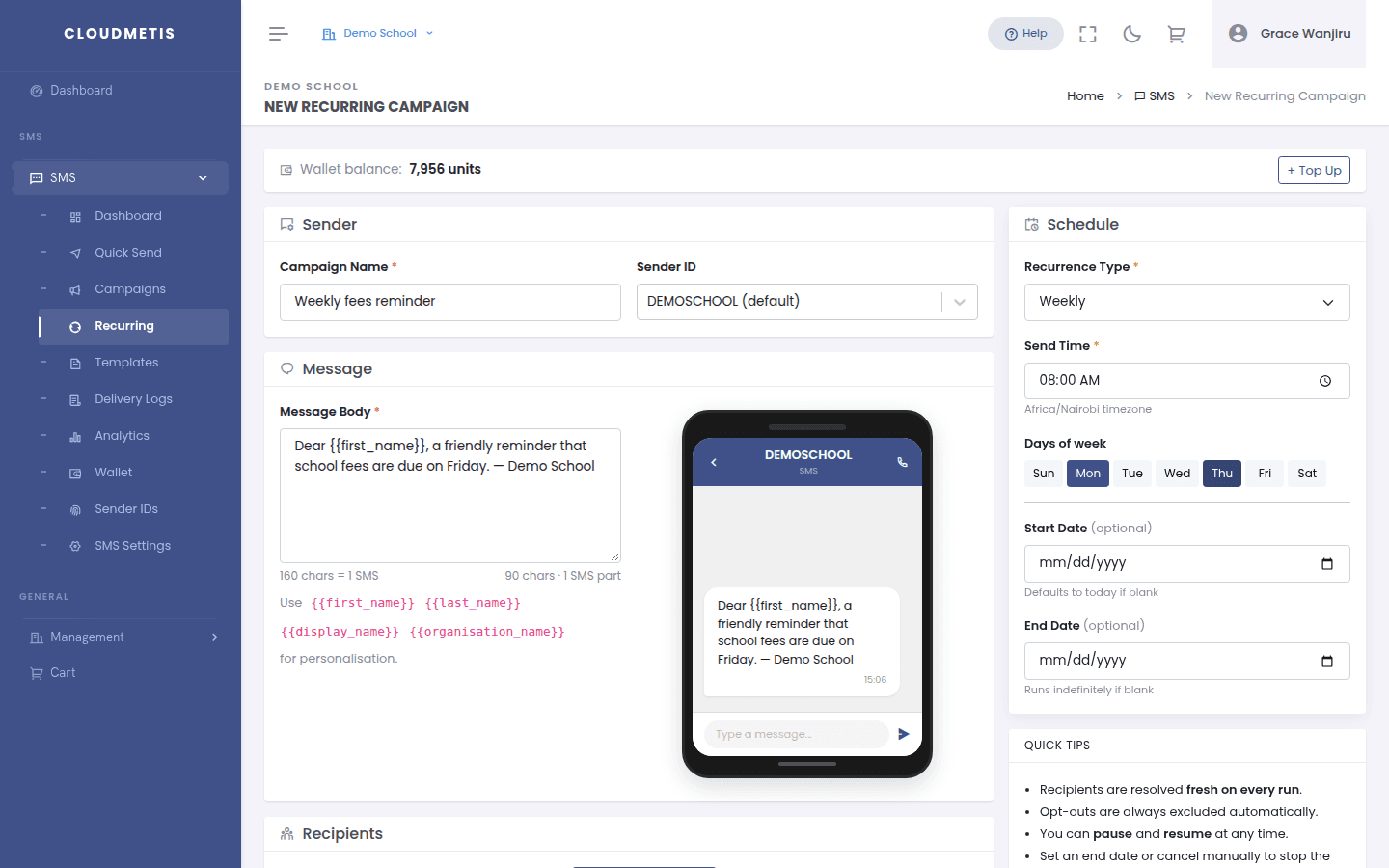
- Click New Recurring Campaign.
- Enter a Campaign Name, choose the Sender ID, optionally a Template, and write the Message Body.
- Choose recipients (Manual Numbers, Contact Groups or All Contacts).
- Under Schedule:
- Recurrence Type — Run Only Once (a one-off scheduled send), Daily, Weekly or Monthly.
- Send Time — in East Africa Time (UTC+03:00).
- Daily: every N days. Weekly: which days. Monthly: a date (e.g. the 1st) or a weekday (e.g. the last Friday).
- Start Date (defaults to today) and End Date (blank = no end).
- Click Create & Schedule.
Recipients are worked out again on every run, so contacts you add to a group later are included automatically.
Manage a schedule
Open it from SMS → Recurring to Pause, Resume or Cancel it, and to see the Run History. A recurring campaign can only be deleted before it has sent anything; after that, cancel it instead.
Templates
Save messages you send often in SMS → Templates → New Template. Give it a name and category, write the text (with {{first_name}} and other variables), and use it from Quick Send or a recurring campaign.